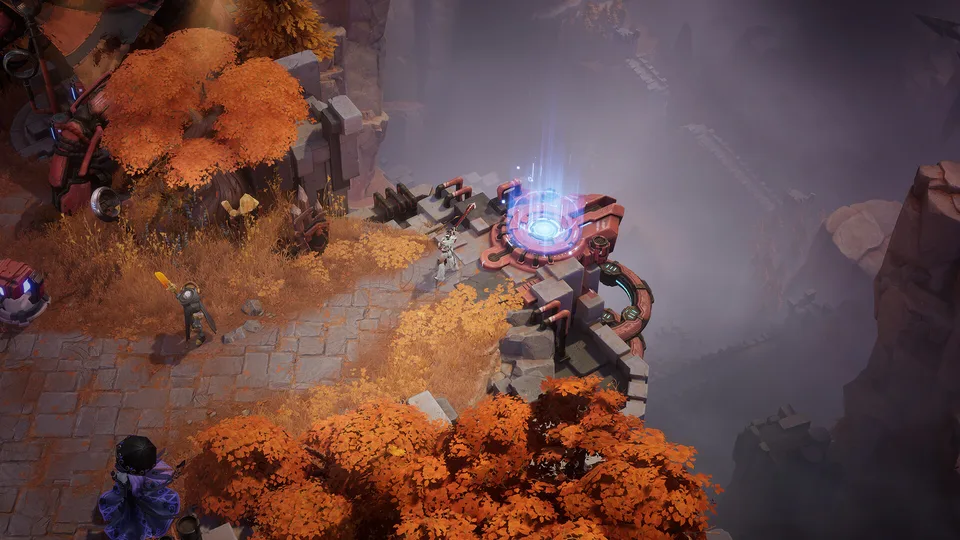
Discover how to play torchlight infinite on steam deck with optimal Proton versions, control layouts, and performance tips. Get started today!
Published: Torchlight: Infinite Wiki Editorial Team
Table of Contents
Introduction to Playing Torchlight Infinite on Handheld Hardware
Action RPG enthusiasts looking for a portable dungeon-crawling experience often wonder how well torchlight infinite runs on Valve's popular handheld device. Diving into fast-paced loot grinds on the go has never been more appealing, making hardware compatibility a top priority for mobile gamers. Understanding how to configure your system properly ensures you can enjoy smooth combat loops without unexpected crashes or resolution bugs.
As a free-to-play MMOARPG developed by XD, getting torchlight infinite on steam deck opens up a massive world of character builds, seasonal mechanics, and endless mob slaying right from your couch or during your daily commute. While the title requires online connectivity and careful setup of launch parameters, community feedback proves that handheld optimization is well within reach.
Compatibility and Proton Configuration Steps
According to player experience and community reports, getting the game to boot correctly on SteamOS requires specific Proton versions. Default installations can sometimes encounter resolution issues with the End User License Agreement (EULA) or fail to register keyboard and mouse inputs correctly.
To help you navigate these initial technical hurdles, the following table outlines the recommended troubleshooting steps reported by experienced Linux and Steam Deck users:
Issue Encountered
Recommended Fix / Workaround
Target Proton Version
Input / Keyboard Recognition
Switch the compatibility layer to resolve missing keystroke registration
Proton 7.0-6
EULA Resolution Bug
Restart the application if the initial agreement screen is non-interactive
Proton 10.0-3 or 9.0-4
Google OAuth Login
Perform initial login via Desktop mode using an external browser
Proton 7.0-37 or newer
Aspect Ratio / Display Glitches
Press Alt+Enter multiple times or adjust windowing parameters
Proton Experimental / 8.0-2
Implementing these fixes early in your setup process prevents frustrating crashes during the initial boot sequence. For additional official platform details and community hubs, you can visit the official Torchlight: Infinite Steam Store Page to check for recent patches and announcements.
Optimizing Controls and Interface Navigation
While full controller support is advertised, player experience indicates that navigating complex menus, talent trees, and in-game shops can feel cumbersome using standard thumbsticks alone. Utilizing the Steam Deck's touchpads and rear grip buttons drastically improves the overall user experience.
Configure Trackpads: Set the right trackpad as a mouse cursor for precise menu clicking, and map the left trackpad to a radial wheel for quick item or skill access.
Utilize Back Buttons: Assign convenient keyboard shortcuts to rear buttons, such as 'T' for returning to town portals and 'C' for checking current seasonal mechanics.
Select Community Layouts: Browse the Steam community layout menu and apply shared configurations like "Mechanic Switching Layout" for streamlined inputs.
Tip
Battery Performance Tip: Capping your frame rate at 60 FPS through the Steam overlay and limiting the TDP to 10 watts can yield approximately 3.5 hours of stable battery life while exploring dungeons in torchlight infinite.
Performance Expectations and Visual Settings
Performance on the custom AMD APU is generally stable once past the launcher phase, though minor stuttering can occasionally occur during heavy screen-clearing particle effects. Adjusting your graphics preset can drastically improve thermal management and frame pacing.
The following guidelines reflect typical community benchmarks for maintaining a smooth handheld experience:
High Textures & Medium Effects
Recommended for balanced visual fidelity. Keeps character models and spell effects sharp while maintaining acceptable frame rates on SteamOS.
Low Shadows & Anti-Aliasing On
Disabling heavy shadow options reduces GPU overhead during intense multiplayer rift runs, ensuring consistent performance when multiple players cast simultaneous spells.
Community reports emphasize that once authentication hurdles and launcher parameters are cleared, the core gameplay loop of torchlight infinite offers a deeply engaging ARPG experience comparable to traditional desktop setups.
Can I play torchlight infinite on Steam Deck without any manual tweaks?
While some users report successful boots out of the box using recent Proton versions, many players experience resolution bugs, EULA interaction failures, or input recognition issues that require switching to Proton 7.0-6 or performing an initial login in Desktop mode.
Do I need an internet connection to play torchlight infinite?
Yes, the title requires constant online access for its MMOARPG features, multiplayer synchronization, and seasonal account progression.
How do I handle Google OAuth logins during the first startup?
Community reports strongly recommend booting the game up in Desktop mode through Steam initially. This allows you to complete authentication through an external browser because the default Gamescope browser environment can occasionally reject Google verification prompts.